Installation
The Entity reference module depends on the Entity API (Other package) and CTools (Chaos tool suite package) modules, so make sure you have them installed and enabled.
As with any other module use drush script to download and enable the Entity reference module, or download the module manually, unpack it under /sites/all/modules and enable through the interface at Modules /admin/modules.
Configure Entity reference field
There is no dedicated configuration page for this module, configuration is done through field settings (Manage fields) and field display options (Manage display).
Before you can configure this field you should first have two content types ready, one that will hold the reference field and the other type that will be referenced from the first one. For example content types "Product" and "Company".
Configure Entity reference field widgets (node edit form)
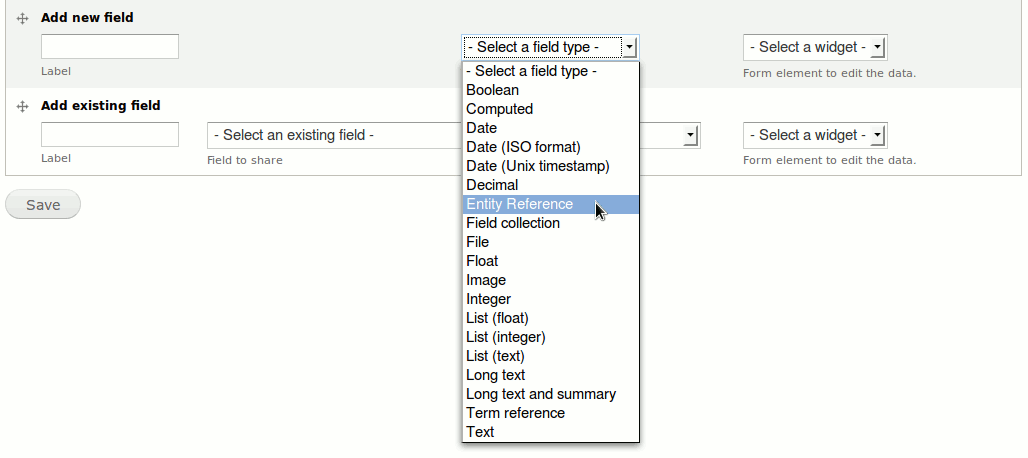
On the "Product" Manage fields page (/admin/structure/types/manage/product/fields) add a new Entity Reference field:
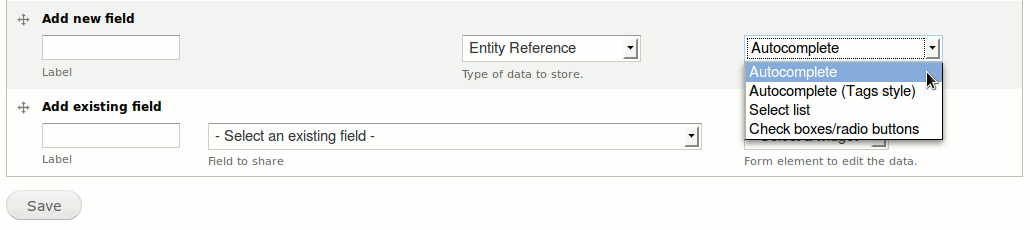
Choose the field widget, there are four choices available:
You will be presented with the field edit page, here you see a screenshot of such a page when the widget is set to Autocomplete and some other settings set:
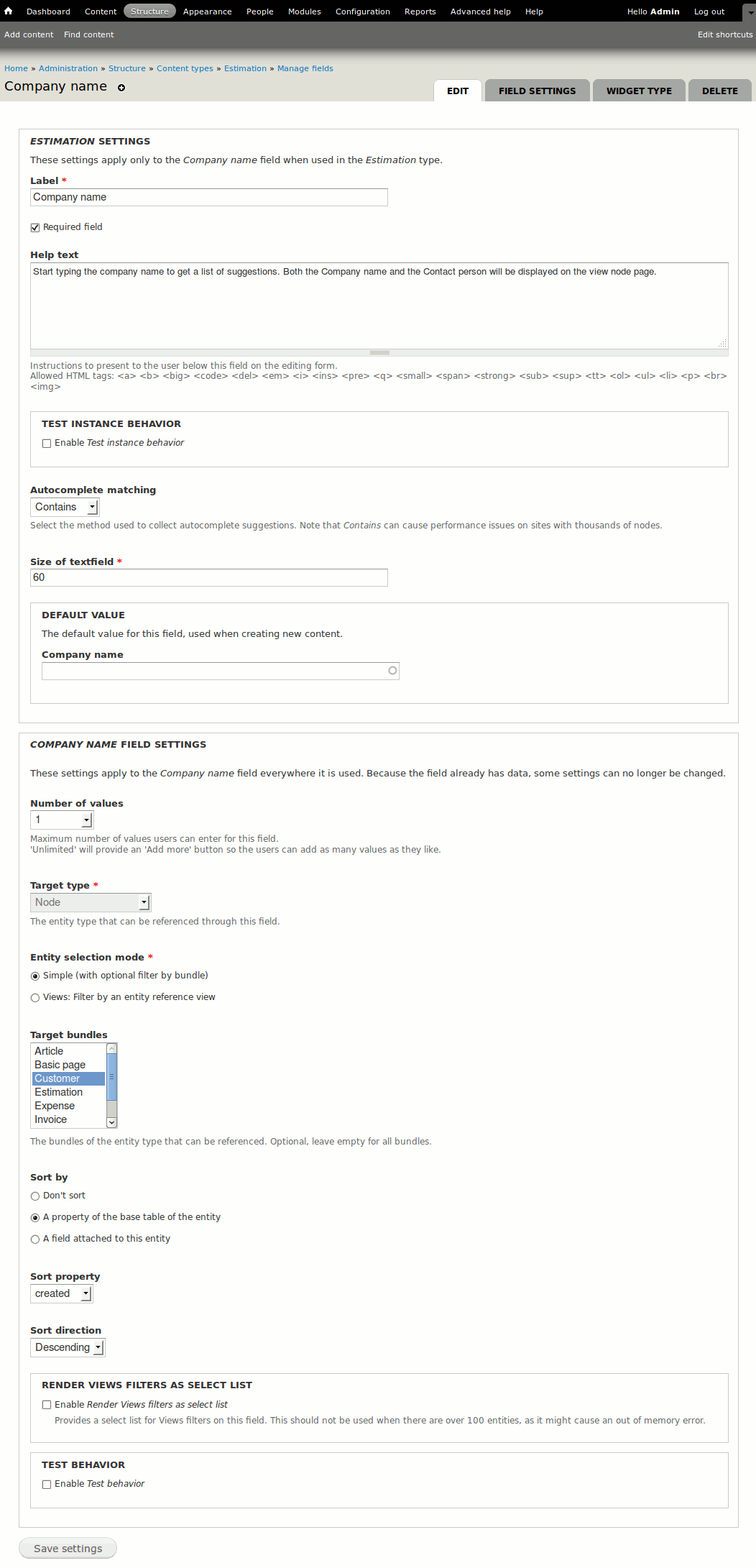
Choosing the Views: Filter by an entity reference view instead of Simple (with optional filter by bundle) doesn't work at the time of this writing but the fix should soon appear in the development version: Filter by view doesn't work.
Use a Views display as a widget—Entity Reference View Widget
This module provides the fifth widget for entity references. It uses a Views display to show choices that can be referenced.
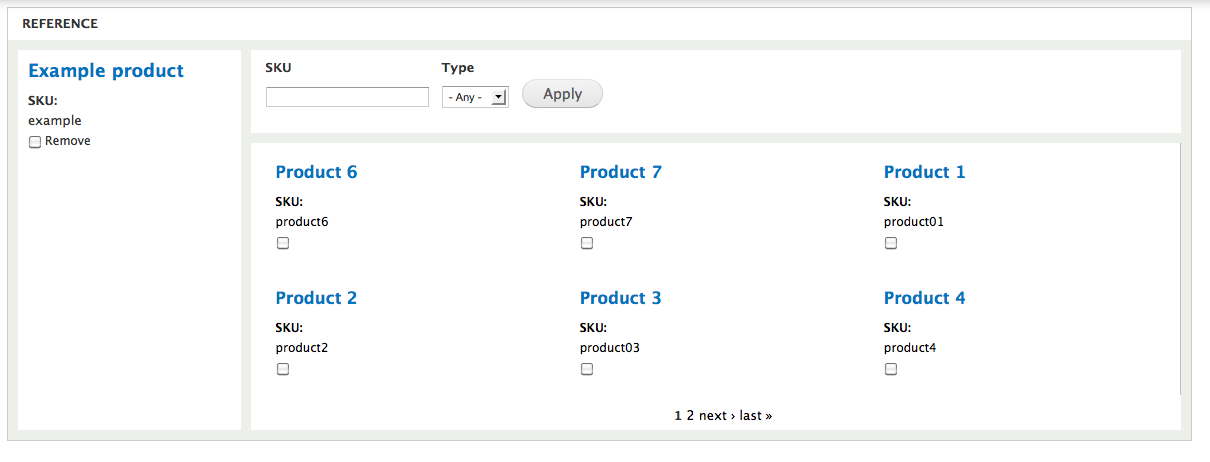
Configure Entity reference field display formatters (node view)
There are three options available that change how the entity reference field is displayed on the node view:

Label
Display the title of the referenced node, you can choose to display it as plain text or link it to the node in question.
Entity ID
Displays only the referenced node ID as plain text.
Rendered entity
Renders the entire referenced node according to its various display settings:

By choosing "Full content" you can display the entire referenced node on the node that refers to it, for example on the node "iPhone 4" apart from the information about that phone you can also display all the information you have about the Apple company contained in the "Apple" node.
Use a Views display as a formatter—Entity Reference View Field Formatter
This module adds the fourth field formatter choice that allows you to use a views display to format the field output. This basically enables you to choose any field or a combination of fields from the referenced node to display in the entity reference field. Without this module we're restricted to displaying the node title, node ID, full node or teaser and some other configurable displays, but nothing as flexible as using views.
Need help? Schedule a free 15 minutes evaluation callContact me
For example you can create views that displays "Company" content type fields "Address", "Contact person", "Store working hours", "Phone" as well as node title, and then use that to control what is shown as the entity reference field.

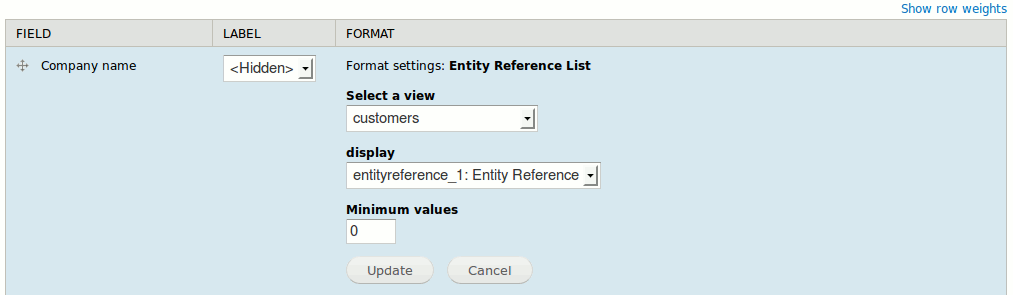
Here are the options for this formatter, they allow you to select a view and a display within it:
This module is currently a sandbox project, but you can still download and use it, I haven't noticed any bugs.
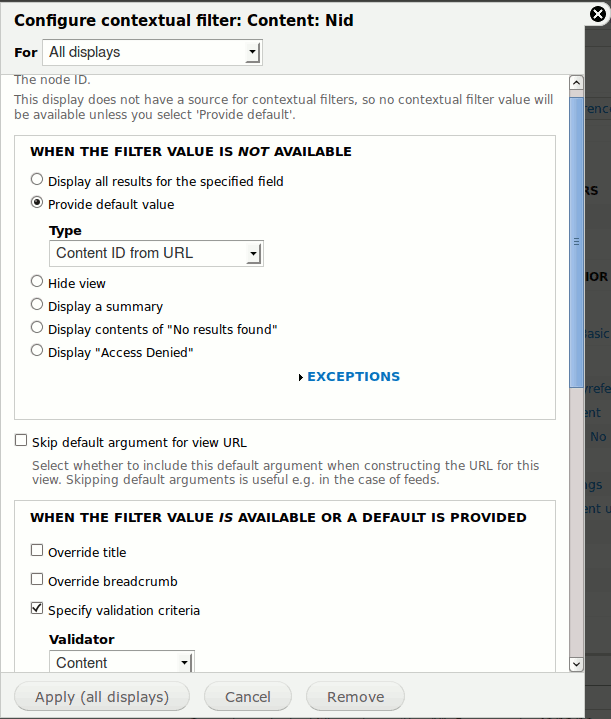
Don't forget to add a Contextual Filter to your Entity Reference views so only the referred node information is displayed on the node that references it:
Further Enhancement – Create the referred node while creating the node that references it
The referenced node can be created while creating the node that references it with the help of the Entity connect module.
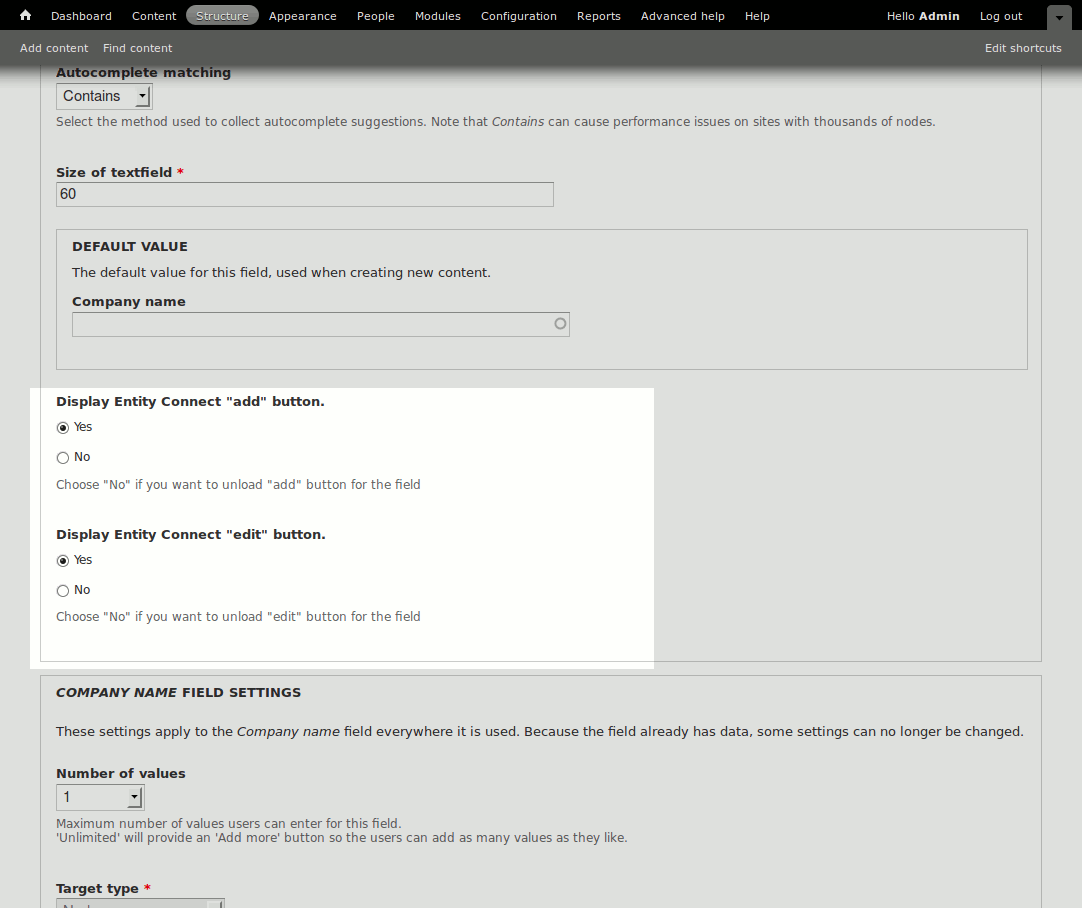
This module provides two buttons on the Entity reference field, one for adding a new referenced node and another for editing an existing one once it's referenced inside the Entity reference field.

When adding a new node the page reloads to display the node-create-form for the content type being referenced. After the form is filled in and saved the page reloads again and the new node information is already filled in the Entity reference field and you can continue to fill in the original node.
Here is a screenshot of what settings this module adds on the Entity reference field Edit page: