
Group Views Results by one field
Views allows grouping Results by Fields. This makes sense in cases where a lot of the items in the results share the same value of a field. Grouping by a field creates groups of results where each group shares the same value of the selected field.
How to Group by multiple Fields in Drupal Views #Drupal8 @prkosTweet this
For example, if we have a table of Article nodes showing various information related to that node, we might want to group the results by the article Author. We would end up with as many groups as there are different Authors in the results.
The relevant author name is displayed above each table, usually output within the <h3> HTML element or a table <caption>. The actual Author field can be Excluded from the results because it's displayed above the table it doesn't have to be repeated as a column within the table.
Here is an example of article information arranged in a grid and grouped by the author username:
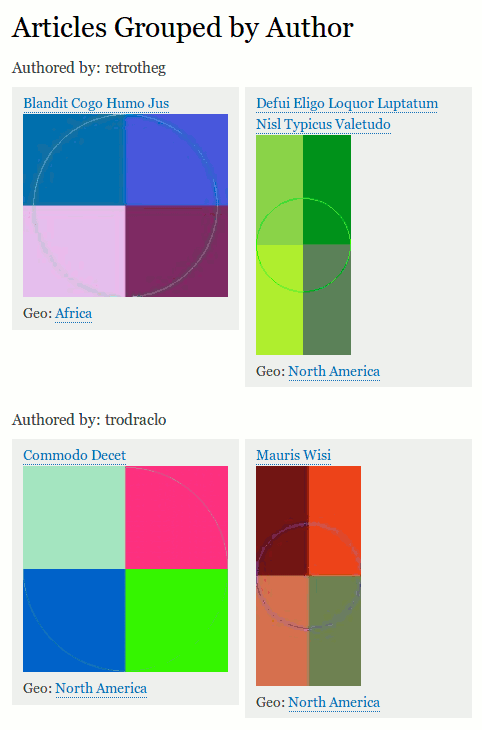
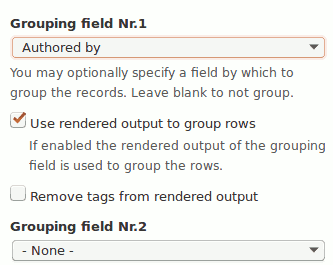
It was produced by setting the Format settings to group by the Authored by field:
But sometimes we want to show more than one Field in the “Group by” area. To use the above example we may want to display user address, photo, or some other information from their profile.
Back to topGroup Views Results by more than one field
Views Format options allow for more than one field to be used in the Grouping options. Once there is one field chosen as the Grouping field, a new option appears where we can choose a second field to be used in the grouping, and so on with the third, etc.
In the example below we used the author profile picture, Taxonomy field showing their music tastes and Bio text field:

The downside of this method is that you can't control the styles completely. The last “Group by” field will be output bold as the grouping heading, and only the last grouping field will be shown last, which probably isn't the style and layout you're after.

Control Group by styling with Custom text field
But there is a way you can group by multiple fields and control the output: Use Custom text field. Position it below all the fields you want to group by so you have their Replacement patterns available. Use the Replacement patterns and whatever HTML containers to construct the output of your Grouping fields:
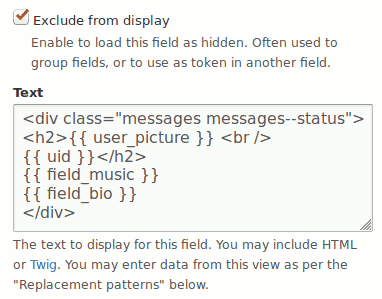
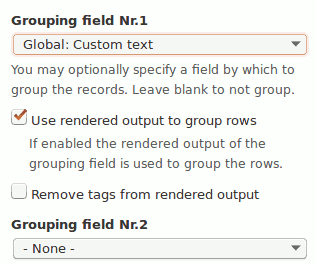
Hide (Exclude from display) all the fields you want to be shown in the “Group by”area, including the Custom Text field, and under Format settings choose only the Custom text field as the “Group by” field:
Need help? Schedule a free 15 minutes evaluation callContact me
Now you'll have more than one Field shown above the results tables styled to your liking. No need for template overrides:
